Interviewers
Keep the original interview file nearby and note the guest names before uploading.
You can check speaker labels and confirm important quotes against the source recording.
online audio transcription examplesPractical tutorial
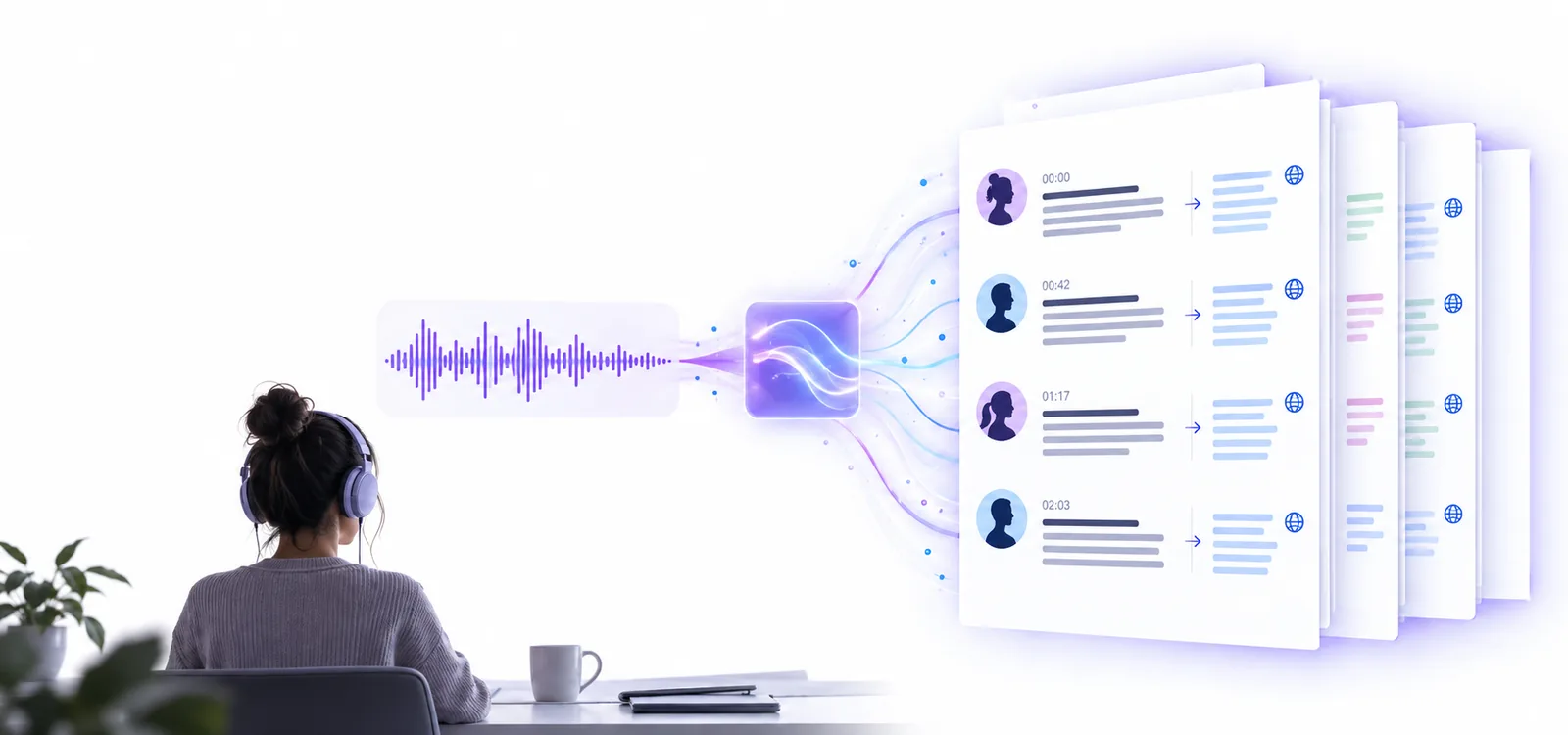
This guide shows how to use audio transcriber online from the first upload to the final review. Follow the workflow to get cleaner text from interviews, meetings, lectures, and voice notes.
Before you begin
A few simple checks make the transcription process smoother and reduce avoidable corrections later.
Keep the original interview file nearby and note the guest names before uploading.
You can check speaker labels and confirm important quotes against the source recording.
online audio transcription examplesUse the clearest lecture or seminar recording available, preferably without background music.
The transcript becomes easier to search, annotate, and turn into study notes.
transcribe audio to text free onlinePrepare the full episode file and decide whether you need a verbatim draft or a cleaned-up version.
You can move from raw audio to show notes, quotes, and an editing reference more quickly.
audio transcriber aiChoose a recording with understandable speech and identify any specialist terms or names in advance.
A quick review catches terminology issues before the transcript is shared with others.
transcribe audio recording to textThe workflow
The basic process is short: prepare the source, submit it, then review the generated text against the audio.
Choose the original audio file rather than a compressed copy when possible. Remove long silent sections only if you are sure they do not contain useful context, and make a note of names, acronyms, or technical terms that may need checking.
Open the transcription tool, add the recording, and provide a concise instruction about the desired result. Mention speaker separation, timestamps, paragraph breaks, language, or any formatting preference that matters for your task.
Read through the transcript while listening to difficult passages. Correct names, numbers, and punctuation first, then copy the clean text into notes, captions, meeting minutes, research files, or another document.
Troubleshooting
Most weak results come from the source recording or from skipping the review stage, not from the basic upload process.
Quality review
A good transcript is not just an automatic output; it is a checked working document shaped for its intended audience.
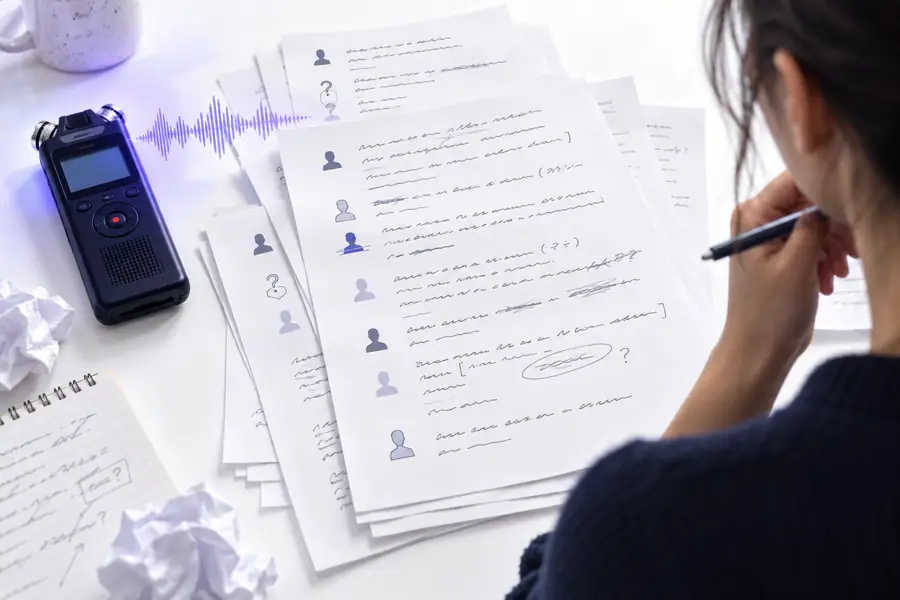 Before review
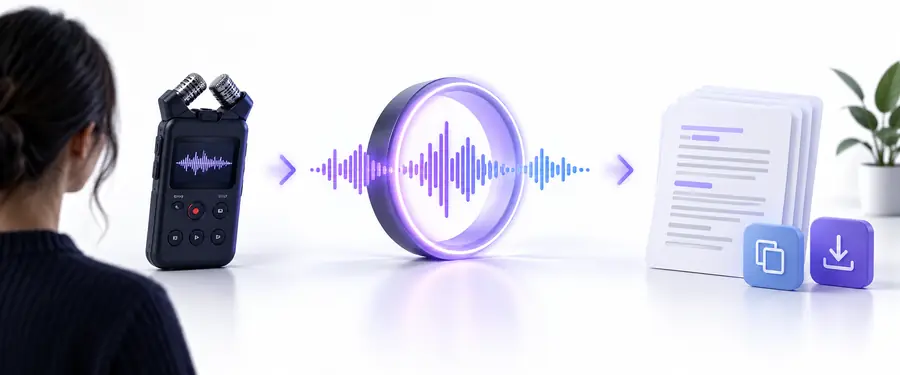 After review
Know the limits
Online transcription can save time, but it cannot recover information that the recording does not contain or verify every fact automatically.
Traffic, music, room echo, and overlapping voices may produce missing or incorrect words.
Workaround
Use the cleanest source available, then replay uncertain sections and mark them for manual correction.
People, products, places, acronyms, and technical vocabulary are easy to misrecognize when they are uncommon.
Workaround
Keep a reference list nearby and search the transcript for likely variants after processing.
A tool may distinguish voices inconsistently when speakers interrupt each other or sound similar.
Workaround
Confirm each label against the recording before publishing minutes, captions, or quotations.
Generated text reflects the audio; it does not establish whether dates, claims, figures, or names are accurate.
Workaround
Verify important statements with the original source or a trusted reference before sharing them.
Choose your output
Use the first column when speed matters and the second when the transcript will be read, quoted, or distributed.
Best for
Raw generated text
Quick searching and rough notes
Reviewed transcript
Sharing, quoting, captions, or publication
Speaker labels
Raw generated text
May need confirmation
Reviewed transcript
Checked against the recording
Punctuation
Raw generated text
Useful first pass
Reviewed transcript
Adjusted for readable paragraphs and meaning
Names and numbers
Raw generated text
Requires careful verification
Reviewed transcript
Corrected using the source audio
Time required
Raw generated text
Lower upfront effort
Reviewed transcript
More effort, with a more dependable result
Recommended workflow
Raw generated text
Upload, skim, search
Reviewed transcript
Upload, listen, correct, then format
Risk if shared immediately
Raw generated text
Errors may look authoritative
Reviewed transcript
Fewer obvious transcription mistakes remain
Start transcribing
Upload a clear recording, give the tool a focused instruction, and review the passages that matter most. The result can become a practical starting point for notes, research, meetings, interviews, or content editing.
Transcribe my audioTutorial FAQ
These answers cover the practical questions people ask when learning how to use an online audio transcription workflow.
Choose a clear recording, upload it to the transcription tool, and describe the output you want. When the text is ready, listen to unclear passages and correct names, numbers, speaker labels, and punctuation before using it.
Use the original recording with voices that are as clear as possible and with limited background noise. Avoid unnecessary compression, and check that the file contains the complete section you want transcribed.
It may separate speakers, but speaker labels should be treated as a draft rather than a guarantee. Overlapping speech, similar voices, interruptions, and poor audio can all cause labels to be assigned incorrectly.
Yes, especially when the text will be shared, quoted, or used for important decisions. Review names, dates, figures, technical terms, and any sentence that sounds uncertain while listening to the matching audio.
Replay the affected section and compare it with the written text instead of guessing from context alone. If the same type of error appears repeatedly, improve the source recording or add clearer instructions about language, speakers, and formatting.